

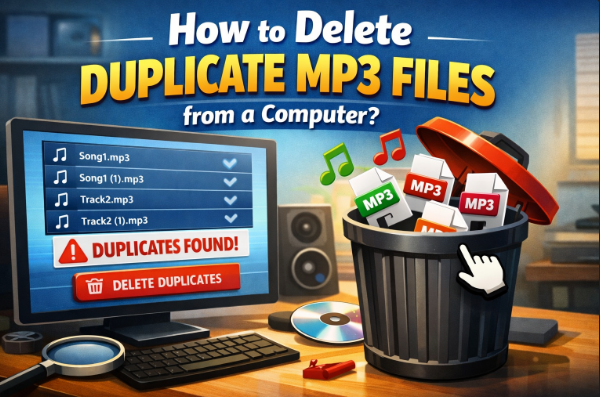
Highlights: In this age, saving files on your system is very easy. To make the best use of storage systems, music lovers store a wide range of items in them. As the storage, taken by the music files is large. And in that large storage, locating a sound file can be very troublesome. Now, to fix this kind of problem, we suggest you to read this article on: How to Delete Duplicate MP3 files from your PC? Now, you can easily remove duplicate files on your PC. Here, the file can be a WAV, WMA, APE, MID/MIDI, or any other.
In general, these duplicate audio documents are the xerox copies of the actual file. Hence, having multiple identical copies of the same file can slow down your system performance. With this much, being said, now, let’s jump into the main context.
How to Delete Duplicate MP3 Files on PC Using File Explorer?
However, in case you want to be rid of any duplicate audio files from your Windows system without a third-party utility, it is pretty straightforward to do so in a couple of steps:
- To achieve this, open the search bar in Windows 10.
- Search for the name of the folder you want to find. Click on the folder where you want to retrieve it.
- Click on “View” to switch to “Details View” to see more. mp3 file data.
- Next, click on Name under Sort by to order the files
- Review each duplicate. mp3 file systematically.
- You can use Ctrl + Left click the mouse can select multiple files withoutthe need to drag the mouse.
- Now, delete the duplicate files you have located.
How to Find and Remove Duplicate MP3 Files through Windows Media Player?
Windows Media Player is one such media player with the capability of managing your song files for you available on Windows 10. It handles not only music playback but also other unauthorized copies of the audio files. Here’s a simple guide:
So to begin, find the Windows search bar next to the Windows icon, and search for Windows Media Player. Go to the app, then you can click Music, and subsequently right-clicked and picked Manage Music library After that, hit Add, choose your songs folder, and hit Add Folder.
Now for a bit of order in the maelstrom, navigate to Organize → Sort by → File Name This will enable you to alphabetically organize each of your music files.
Finally, some functionality to locate and delete duplicate music files to stay organized. Manual review of well-structured files is also not an exception. Identify the duplicates and then boldly click on Delete
Thus, Windows Media Player on Windows 10 is a good choice for you to organize your music files.
Limitations in Easily Accessible Solution to Remove Duplicate MP3 Files
- Time consuming and manual processes causes people to miss things which causes human error.
- It becomes hard to decipher where is what as human eye can not catch that duplicates.
- Such differences in metadata further complicate the efficient search of replicated files.
- Even more so than renaming file extension showing types.
- A challenging compatibility issue in large music libraries.
- The automation is minuscule, making the prospect of scanning/catching duplicates very slow.
How to Scan and Delete Duplicate MP3 Files on Windows 10/11? – A Professional Tech
The above solution is not a secure and trust worthy, hence better to use SysTools duplicates finder for PC as a permanent solution. Its user interface is easy to use, which means you dont have to have any tech knowledge to know how to use it! It offers:
- Extensive scanning
- Cross-platform compatibility (Mac and Windows)
- Recursive scanning
- Move and delete options
- It sees music file types, among others. docx,. pptx,. txt, etc.
- Uses several scanners for the MD5 of the file, metadata, and the content hash.
- Preview duplicate Files to Remove.
Noteworthy Steps to Remove Duplicate MP3 Audio Files
Step 1. Download and install Duplicate Audio Detector The very first step you should take is to download and run the Duplicate Audio Detector application.
Step 2. Include the path to the folder where the songs are located in the list.
Step 3. We will select in the Scan Configuration dialog → music file type → next
Step 4. Click on delete to start the deletion process.
Step 5. Verify that the deletion has been completed in the Action.
Manual (Free) v/s Automated (Professional) Methods to Find and Delete Duplicate MP3 Files
Below is the detailed and accurate points to distinguish manual and professional methodology to remove same audio on PC.
Manual Solution
- Very Slow, too slow especially when dealing with larger music book
- Error-prone; may miss duplicates
- Requires manual inspection and decision-making
- Allows personalized decisions
- Higher risk of deleting things you didn’t mean to delete
- Impractical for very large collections
- Consistency depends on user attention
- Slow execution
- Requires ongoing manual maintenance
- Easy to implement, even painful for bigger libraries
- Free, but costs significant time
Automated Solution
- Rapid Scanning makes it fast and easy
- More accurate through algorithm-based identification
- Typically easier to use, with friendly interfaces
- Allows you to define its unique configuration and deletion rule
- Minimize the loss of key files deleted
- Handles large libraries efficiently
- Consistently applies predefined rules
- Executes Operations in the Blink of an Eye via Tuning Algorhythms
- Holds the designated right for its upgradation and developer improvements
- User-friendly with minimal learning curve
- Some of these tools have free versions but high-end features may not be free.
Final Takeaway
Handling duplicates is, to begin with, a difficult task. In this article, we will discuss how to delete duplicate MP3 files from a PC. However, manual methods can be a lot of hassle, and so, Duplicates MP3 Finder seems to be a safe and reliable software solution. Control duplicates to minimize file size.
Discover Modern Comfort: A Guide to Apartment Rent in Beirut
Beirut, the lively capital of Lebanon, is a city that blends deep-rooted history with a mo…



Discover Modern Comfort: A Guide to Apartment Rent in Beirut
Beirut, the lively capital of Lebanon, is a city that blends deep-rooted history with …